Setting up a dedicated supplement tracker on your iPhone is a great way to keep your data private and stay consistent without needing a paid, third-party subscription app. Here is how to build a seamless system using Apple’s built-in Reminders and Shortcuts.
Step 1: Create the Master List
First, we need a dedicated space for your vitamins to live.
- Open the Reminders app.
- Tap Add List in the bottom right corner.
- Title the list Daily Supplements.
- Choose a color (whatever you fancy) and an icon.
- Tap Done.
- Open your new list and tap New Reminder to add each supplement.
Tip: Tap the “i” (info) icon next to a supplement to set a specific time alert if you need a daily nudge.
Step 2: Build the Shortcut
This step turns your list into a “popup” menu that you can trigger right from your Home Screen.
- Open the Shortcuts app.
- Tap the + icon (top right) to create a new shortcut.
- Tap the name at the top of the screen (it usually says “New Shortcut”), choose Rename from the drop-down menu, and name it Supplements.
- Tap the small icon next to the new name to choose a color and a symbol. This will be the base for what you see on your Home Screen (we’ll customize this further in Step 3).
- Type “Open List” into the “Search Apps and Actions” search bar at the very bottom of the screen, and tap the action to select it.
- In the action block, tap the word “List” (it might say ‘Reminders’ by default) and select your Daily Supplements list.
Step 3: Customize the Icon and Add to Home Screen
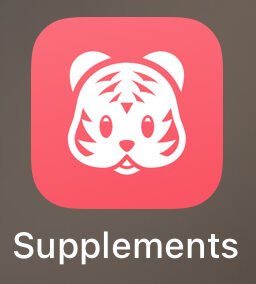
This is where we make it look and act like a real app.
- While still in your shortcut editor, tap the Share icon (the square with an up arrow) at the bottom of the screen.
- Select Add to Home Screen.
- To change the title: Tap the name under “Home Screen Name and Icon” and type whatever you’d like (e.g., “My Vitamins”).
- To change the icon: Tap the small icon next to the name. You can use Take Photo or Choose Photo to use a picture of your actual vitamin bottles, or Choose File to use a custom icon you’ve downloaded.
- Tap Add in the top right corner.
How it Works
Now, when you tap that icon on your Home Screen, it will instantly jump you straight to your checklist. As you take your vitamins, just check them off!
Restoring a Checked Item
Did you check off the wrong vitamin? Here is how to get it back:
- Open your Daily Supplements list in the Reminders app.
- Tap the More (…) icon in the top right corner.
- Tap Show Completed.
- Find the supplement you checked by mistake and tap the filled circle next to it to uncheck it.
- It will instantly jump back up into your active to-do list.
- (Optional) Tap the More (…) icon again and select Hide Completed to keep your view clean.
How to Make Your List Reset Every Day
To automate this system, you need to set your list to refresh itself. That way, when you check off a recurring reminder today, it automatically reappears for tomorrow.
- Open your Daily Supplements list in the Reminders app.
- Tap on one of your supplements, then tap the “i” (info) icon next to it.
- Toggle on Date (and toggle on Time if you want a push notification to remind you).
- Tap Repeat and select Daily.
- Tap Done in the top right corner.